




When MBON is requested , there are one of two ways this will be handled .
Option A - All PS4s connected :
In the event all PS4s are connected from the prior weekend , there are two Power Strips . One for Consoles only and another for A/V . Both are labeled .
On the end of the A/V Power Strip , press the button and a green and blue light will illuminate .
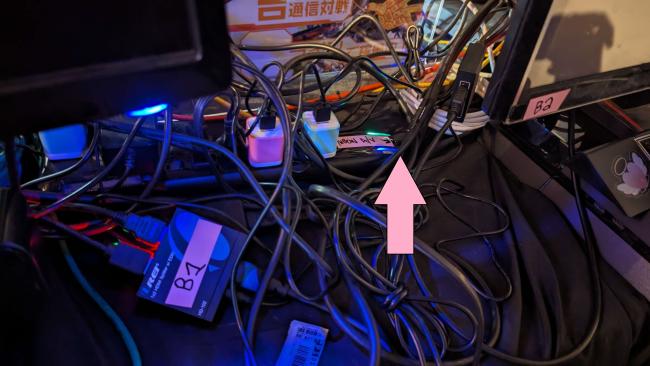
All monitors should automatically power on except for Station A2 .
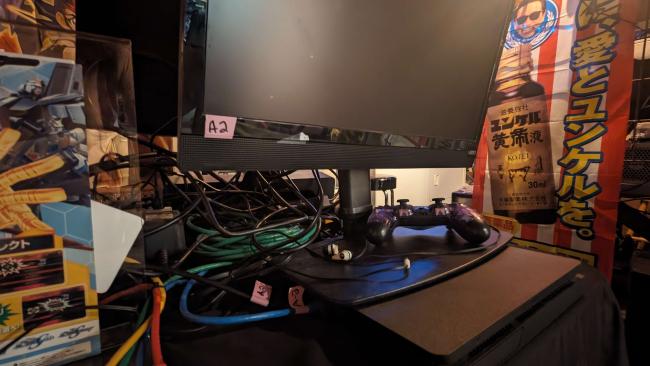
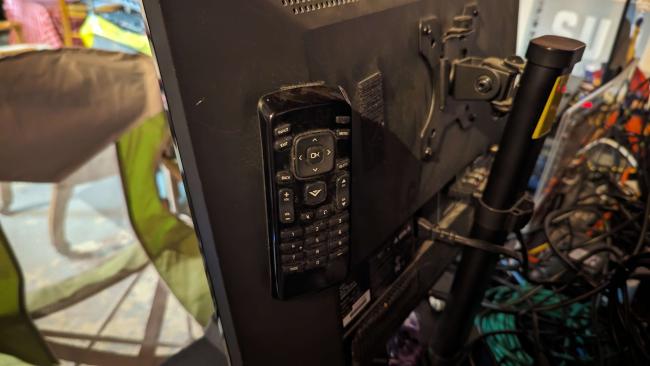
There is a remote on the rear for Station A2's monitor ,
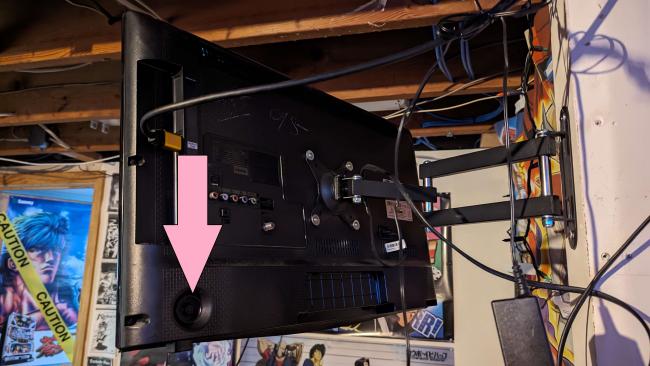
Press the following button on the rear of the Live Monitor to power it .
Option B - A PS4 needs added :
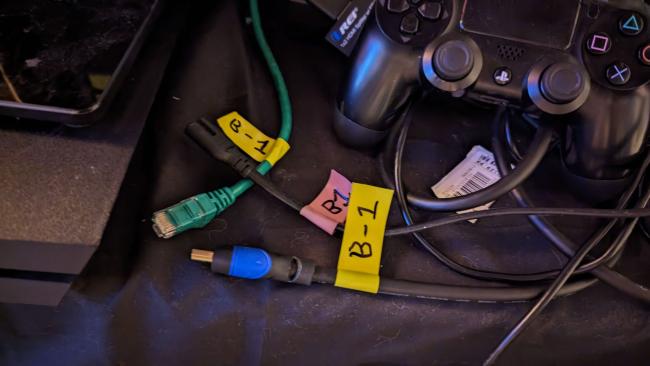
If a PS4 is not plugged in , the only cable possibly required by the person bringing the console is the power cable . We are working on supplying all of these . Currently , all Networking and Video cables are provided and labeled . There will be 3 cables per setup .
If a power cable is not provided , there will be an open available outlet on the following power strip at the end of the table against the wall .
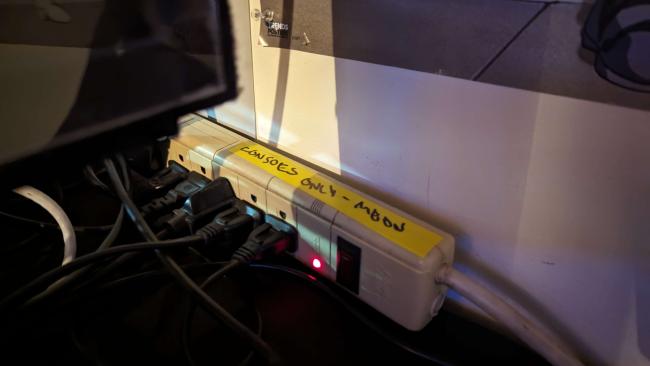
Power on the AV Power Strip , Station A2s monitor and the Live Monitor as shown in Option A above .
--
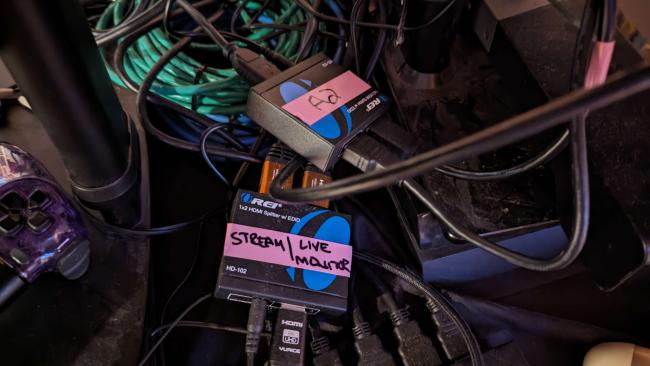
Ensure that none of the following boxes are touched , these have EDID information stored that are configured for the Live Monitor , Station Monitor and Stream Video Distribution . These devices are only shown for troubleshooting as their labeling will be important for remote support .
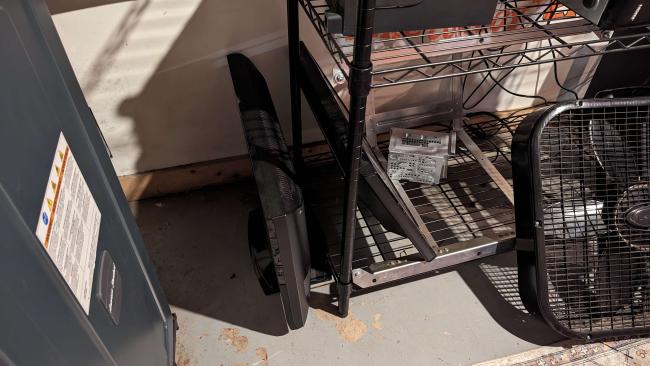
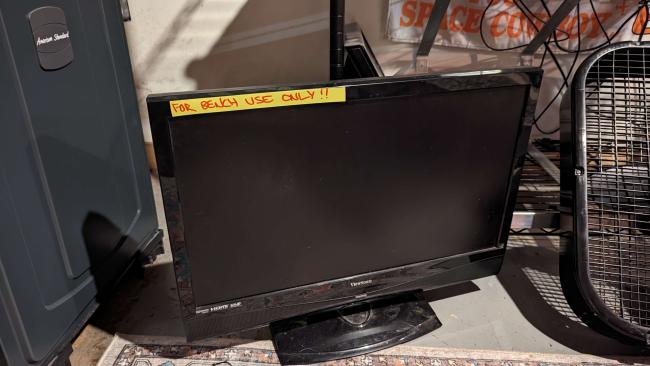
In a situation where a PS4 displays no video , it will need to be isolated . There is a common problem of the HDMI connector on the PS4 lifting off its pads and losing connection . The first device in this chain to be tested is the PS4 . There is a " Bench Use Only " monitor which can be directly used with the PS4 , located in the base of the ITG setup . This includes a known working and tested HDMI cable .
If video continues to not display , please replace the PS4 with another device that outputs HDMI . The Surface Tablet used to display shows above the Big CRT is a good test device for this .
If this display does not appear on it's Monitor + Live Monitor , please contact Yams . There is a problem deeper in the chain which is not as easily resolved .
If this were to happen , we will document this in a troubleshooting guide . Information on this setup can be found HERE
Option A - All PS4s connected :
In the event all PS4s are connected from the prior weekend , there are two Power Strips . One for Consoles only and another for A/V . Both are labeled .
On the end of the A/V Power Strip , press the button and a green and blue light will illuminate .
All monitors should automatically power on except for Station A2 .
There is a remote on the rear for Station A2's monitor ,
Press the following button on the rear of the Live Monitor to power it .
Option B - A PS4 needs added :
If a PS4 is not plugged in , the only cable possibly required by the person bringing the console is the power cable . We are working on supplying all of these . Currently , all Networking and Video cables are provided and labeled . There will be 3 cables per setup .
If a power cable is not provided , there will be an open available outlet on the following power strip at the end of the table against the wall .
Power on the AV Power Strip , Station A2s monitor and the Live Monitor as shown in Option A above .
--
Ensure that none of the following boxes are touched , these have EDID information stored that are configured for the Live Monitor , Station Monitor and Stream Video Distribution . These devices are only shown for troubleshooting as their labeling will be important for remote support .
In a situation where a PS4 displays no video , it will need to be isolated . There is a common problem of the HDMI connector on the PS4 lifting off its pads and losing connection . The first device in this chain to be tested is the PS4 . There is a " Bench Use Only " monitor which can be directly used with the PS4 , located in the base of the ITG setup . This includes a known working and tested HDMI cable .
If video continues to not display , please replace the PS4 with another device that outputs HDMI . The Surface Tablet used to display shows above the Big CRT is a good test device for this .
If this display does not appear on it's Monitor + Live Monitor , please contact Yams . There is a problem deeper in the chain which is not as easily resolved .
If this were to happen , we will document this in a troubleshooting guide . Information on this setup can be found HERE